Learn what Smart tips are, who sees them and when, and what admins need to know.
🎯 Who this article is for: Admins who want to know what their organization will see within their intranet. Anyone in your organization who comes across a tip can read it too.
💼 Package requirements: Smart tips are available to all packages.
🔒 Permissions: No permissions are needed to see tips.
💻 Devices: Smart tips appear when people use Happeo in a desktop browser. They do not appear in the mobile app.
1. Overview
Smart tips help people get more out of Happeo while they are using it. Each tip is a short in-app guide, three steps or fewer, that points to a feature a person has not tried yet or has not used in a while: running a first search, for example, or switching on an integration their organization has approved.
Smart tips roll out from November 16, 2026. Each tip is shown only to the people it is relevant to, and none of them include an upsell. Every current tip is listed on this page, so admins can see exactly what their people will see before anyone sees it.
2. Use cases
- Help new hires find answers without asking a colleague: A first login is when people have the most questions. A tip shows them the search bar, tells them they can type a plain question like "How do I book time off?", and shows how to open every result. The first place they look for an answer becomes Happeo.
- Bring files, email, and calendar into the same search: Search can include a person's own files, email, and calendar once they switch on the integrations their organization has approved. A tip points them to the integrations tab in User Settings, where a short note explains that everything listed is approved and that only they see their own content.
- Put guidance next to the feature it explains: Tips show up inside Happeo, next to the feature they explain, for the people who have not used it. Your team gets guidance in context, and you do not need to schedule a post or an email for each feature.
3. Before you begin
- No setup is needed. Smart tips are on by default for every organization.
4. How Smart tips work
What a tip looks like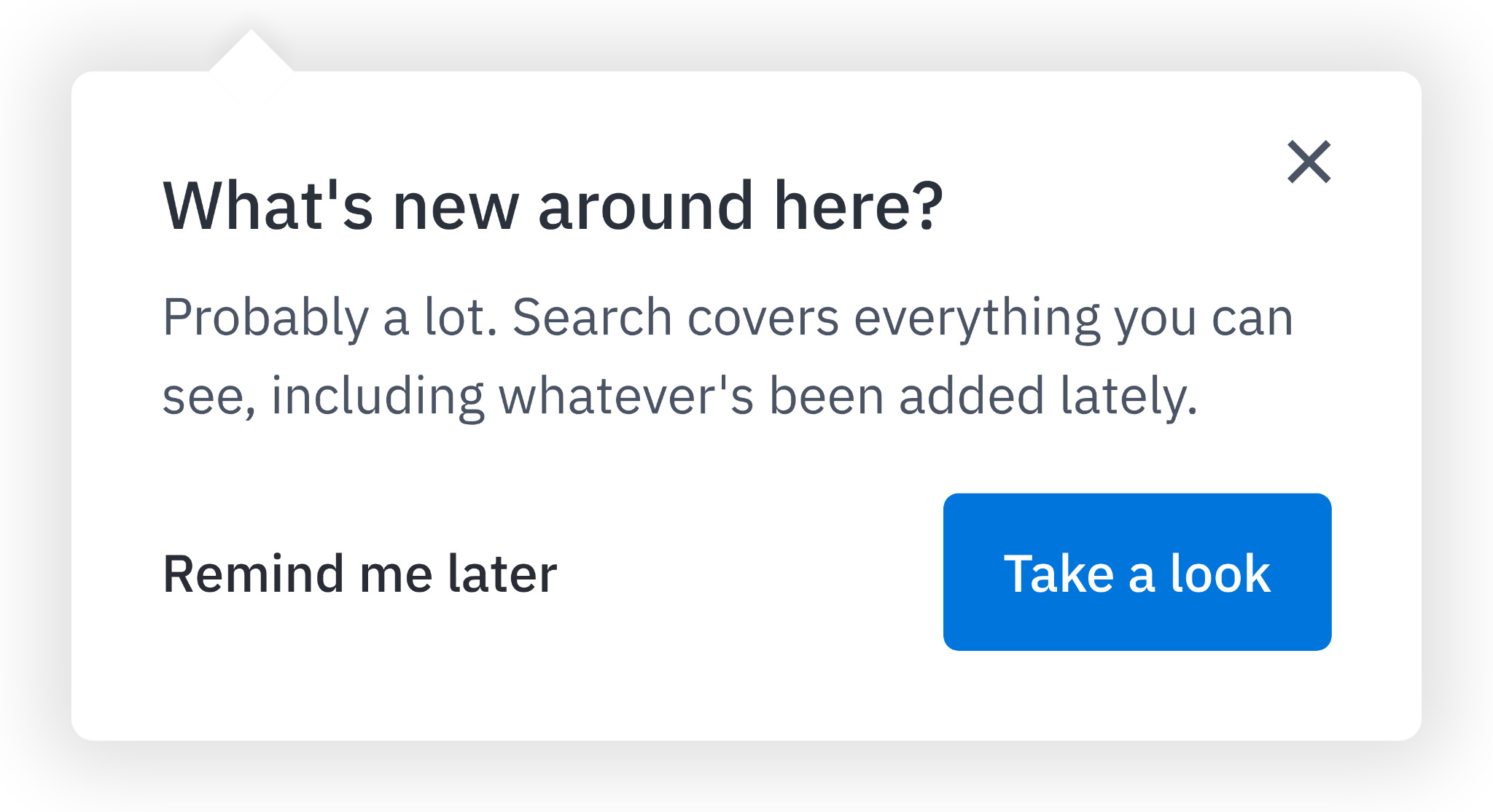
Each tip is a short pop-up or tooltip that points to part of the Happeo interface. It has a headline, a sentence or two of guidance, a way to move to the next step, and a Remind me later option. The last step asks the person to try the action. Tips can be closed at any time with the close X button.
Current tips
This list grows as we add tips. Each entry shows who sees the tip, when it appears, what it covers, and the date it was added.
| Tip | Who sees it | When it appears | What it shows |
| Run your first search | People who have never searched in Happeo | When a page loads after they sign in | How to search from the top bar, including asking a plain question, and how to open every result |
| Connect your integrations | People whose organization has approved integrations and who have not switched any on yet | A little while into a visit, after they've seen the search tip | How to switch on approved integrations so search covers their own files, email, and calendar |
| Narrow your results | People who reach the full search results page and have never picked a content type or used a filter, or have not in the last 60 days | When the full results page opens, on a later visit than the search tip | How to show only one type of result, then narrow it with that type’s filters |
Run your first search
Shown to people who have never searched in Happeo. Three steps:
| Step | Headline | Text | Moves on |
| 1 | Your organization's knowledge, one search away | The search bar at the top of your site helps you find pages, posts, people and more. | The person selects Show me |
| 2 | Take it for a spin | Type in keywords, or ask a question like: "How do I book time off?" It'll search everything you can see. | The person clicks into the search bar |
| 3 | Press Enter to see it all | These are your top matches. Press Enter, or click "Show all results," to see every result. | The full results page opens |
People who searched before, but not in the last 30 days, see a single reminder step instead:
| Headline | Text | Button |
| What's new around here? | Probably a lot. Search covers everything you can see, including whatever's been added lately. | Take a look (opens the search bar) |
Connect your integrations
Shown once to people who have not switched on any integration yet. It is one tip, plus a note on the integrations tab:
| Part | Headline | Text | Button or link |
| Tip | Connect the apps you already use | Turn on the integrations your organization has approved, and get more out of Happeo. | Show me (opens User Settings → Integrations) |
| Note on the integrations tab | Turn on the apps you use | Your organization approved everything here. Enable any you haven't yet, then allow access when asked. Only you see your own content. | "Need help allowing pop-ups?" (links to the Help Center integrations setup page) |
Narrow your results
Shown to people who reach the full results page and have never picked a content type or used a filter, or have not in the last 60 days. Two steps:
| Step | Headline | Text | Moves on |
| 1 | Pick what you’re looking for | Choose pages, channels, people, posts or a connected app to see only those results. Click “All results” to go back. | The person selects Next |
| 2 | Narrow it further | Each type has its own filters, like page group, author or date. Try one to get closer. Learn more links to the Search article. | The person selects Try it |
Who sees Smart tips
A person sees a tip when they:
- Have not yet done what the tip shows, or have not done it in a while (the table above says exactly what counts for each tip)
- Belong to an organization that hasn't turned tips off
People who already use a feature shouldn't see its tip. Tips appear in the language each person uses in Happeo, where a translation is available, and in English otherwise. Admins and users see these tips the same way.
How often tips appear
Each tip appears once. Remind me later delays the tip for 30 days, unless the person has taken the action by then. Closing (X) a tip, or doing what it shows, ends it for good.
5. Best practices
- Give your team a short heads-up before November 16: A tip is easier to welcome when people have been told to expect it. One line in a channel post or at a team meeting is enough.
6. Frequently asked questions
Can we choose which tips our organization sees?
Not at the moment. Smart tips are on or off for the whole organization. If a specific tip doesn't suit your organization, let your CSM know. That feedback shapes the tips we build next.
Can I see the tips before my team does?
Yes. Every current tip is in the Current tips section of this page.
Will new tips be added?
Yes. New tips are added to the Current tips table with the date they were added.
Does turning tips off also block access to the “What’s New” release notes and other Admin-only notices?
It stops every in-app tip and guide from Happeo, including pop-up announcements about new features. Release notes in What's new (in your user menu) and emails from Happeo continue as usual.
Will tips appear in our language?
Yes, where available. Tips appear in the language each person uses in Happeo. If a tip isn't available in that language yet, it appears in English.
Can our organization turn tips off?
Yes. Ask your CSM, and they’ll switch tips off for your whole organization. You can turn them back on at any time.
Where do questions and feedback go?
To your CSM, or Happeo Support if you're not sure who that is.
7. Troubleshooting
Someone on my team is not seeing tips.
Check the Devices line at the top of this article and the conditions in Who sees Smart tips. A person who has already done what a tip shows, or closed it, will not see it again. Someone who chose Remind me later sees it again after 30 days. Tips appear over time, not all at once, so people won't all see them on the same day.
My organization opted out, but a tip still appeared.
Changes can take up to five working days to apply. If a tip still appears after that, contact your CSM so they can check the setting.